Copyright 2018, Studio 1 Productions, written by David Knarr
(In addition to our article, here is a link to
another article
How
to Lower GPU Temperatures (10 Effective Ways) which is
reall good!)
If you are having performance problems with your computer, especially when you are editing video,
rendering video or the playback of the video starts to stutter, the first thing you want to do is check the temperature
of the video card.
One of the best programs to monitor your computers temperatures, including the video card’s GPU temperature, is HWMonitor.
The program is free and we use it in house here at Studio 1 Productions when testing new equipment and for general
temperature monitoring.
Simply go to www.cpuid.com and click on the
Software Tab.
Then click on HWMonitor, this is the free version. Then download the latest version.
Note: HWMonitor Pro is a paid version and the plain HWMonitor is the free version.
When you run HWMonitor, it will show you the CPU Voltages, Diode 1 & 2 Temperatures, Fan Speeds, ACPI Temp,
the CPU temps, the GPU (Video Card) Temps, the Hard Drive temps and more, depending on your computer.
Note: Diode 2 can give a false reading so don’t worry at it. It’s not used on a lot of motherboards and the false
reading will be really high.
Leaving the program running in background can be a great benefit to you, as it allows you to see the actual temp Value,
the Minimum temp since the program was started and the Maximum temp that the computer or any of the components it is
monitoring hit while HWMonitor is running.
Like most other temperature monitoring programs, the temperatures are given in Celsius, with the Fahrenheit temps in
parentheses.
If you are experiencing any problems, first thing you should do is shut the computer down and let it cool down for about
30 minutes.
The boot the computer back up and run HWMonitor and keep it running. Notice what the temps are for each component,
especially the video card.
Now go back to editing, rendering or playing back video and try to duplicate the problem. As soon as you notice any
performance problems look at the HWMonitor program and look under the Max temps and compare them to the current value
and the minimum temps for the GPU.
Once you know the temps, look in the video card’s manual or online at the video card’s manufacture’s website to see what
the proper operating temperature range should be. If the temps you are getting are on the high end and close to the max
temperature for the card, then you may want to looking into some extra cooling for the video card.
Cooling Your Video Card
Let's take a look at two options for adding extra cooling to your video card. First, you need to know which video
card type you have. Look below and you will see an open video card and a closed video card.
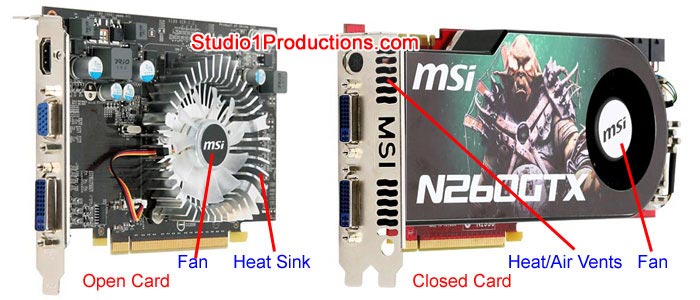
If you take a look at the video card on the left, the Heat Sink and
components on the video card are all exposed. We'll call this an open card. The fan pulls air in and
it is blown across the Heat Sink to cool the video card.
The video card on the right, has a cover over the circuit board enclosing the Heat Sink and the components.
We'll call this a closed card. With the Closed Card, the fan pulls air in and it is blown out the back
where the Air Vents are.
Let's take a look at cooling an Open Card first.
If you have an Open Card you can add a slot fan cooler below the video card to improve the cooling. There are
3 different types of slot fan coolers, as shown below:
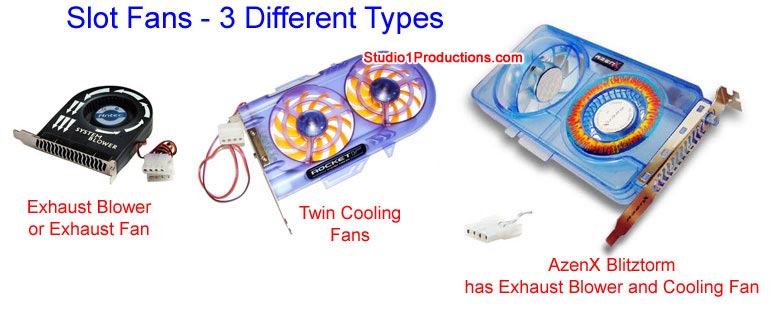
Let's go over each one of these.
Exhaust Blower - The idea behind this type of fan is to pull warm air from the video card into the fan
and have it blow out the back of the computer case. We have tried these. While they do work somewhat, they are not
going to give you the amount of cooling you are going to need for your video card. I don't recommend them alone.
Twin Cooling Fans - The twin cooling fans will blow air directly onto the video card and the heat
sink. In testing this type of fan we saw a good reduction in the GPU temperatures at both idle and under load
while using the Mercury Playback Engine in Premiere CS5. The most of the warm air is blown around the video card
and vented out the back of the computer using the computer's main system fan, we did notice some of the warm air is
trapped between the video card and the fan. We ran a test with a non-toxic smoke so we could see the air flow.
If you choose the twin cooling fans, make sure you get one with a fan speed control. This will allow you to adjust
the fan speed so the noise from the fan isn't too loud.
AzenX Blitztorm Cooling Fan and Exhaust Blower - This slot fan has a 70mm fan and a 70mm exhaust
blower. The idea with this fan is for the cooling fan to blow air onto the video card, while the exhaust blower
pulls the warm air that is trapped between cooling fan and the video card, out the back of the computer. We had
the BEST results with this cooling fan/exhaust blower combination.
With the system sitting idle for about 2 hours without the AzenX Blitztorm cooler, the video card temps would be around
50c. With the AzenX Blitztorm cooler installed the temps dropped to 38c.
While editing with Premiere CS5 for about 2 hours with out this cooler, the temps would be around 60c. Once we put
in the AzenX Blitztorm cooler, after editing for about 2 hours, the temps were now around 48c. So it really does
work. Below is a picture of it in one of our systems here at Studio 1 Productions.
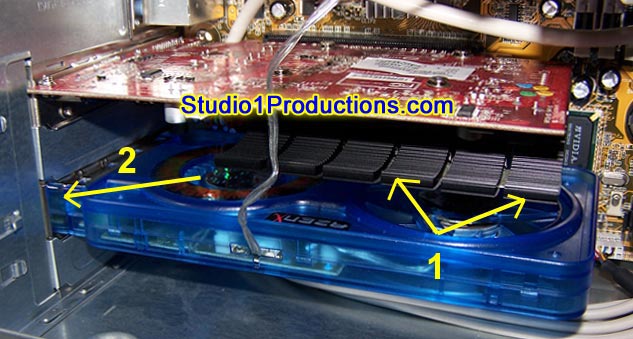
1. The air blows up and on to the video card. With the warm air being moved towards the
exhaust blower.
2. The warm air from the video card is then exhausted out the back of the computer via the blower.
The AzenX Blitztorm BT-SC70BBL PCI Slot Case Cooler is not expensive, the are in the $20 to $25 price
range. One nice thing about the AzenX Blitztorm cooler is, you can also adjust the speeds of the fans. We have
ours turned up about 1/2 way and this gives us good cooling while keeping the fan noise down to where you can't hear
the fans. The fan on the AzenX Blitztorm can be tilted so you can position the direction you want the air to
blow. When you first get one, the fan is set to blow away from the video card. Simply swing the fan around
until it is blowing towards the video card. We have tried our where it is blowing straight up at the card and where
it was blowing more towards the back of the computer where the exhaust blower is. We didn't notice any difference
in the temps of the video card with it blowing the air towards the exhaust blower. So we left it just blowing
straight up on to the video card.
NOTE: If you choose the AzenX Blitztorm or a slot cooler with 2 fans, when you put it
the computer, keep at least 1 slot open between the video card and the slot cooler. This will allow for better
air flow and better cooling.
Now Let's Look at Options for Cooling a Closed video card
Since the heat sinks and the components are enclosed, a AzenX Blitztom or a card with Twin Cooling Fans won't do you
much good since the air from the fans won't get to the circuit board or the heat sink.
So that leave one option, to replace the stock cooling fan with a system like below.
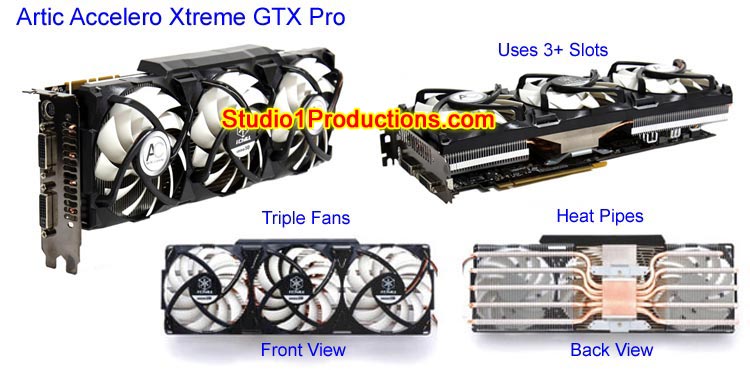
These do a fantastic job at keeping the video card cool. However, I must say
if you are not a computer techie, DO NOT try installing it yourself. Call a computer store or find a computer
tech who has installed an aftermarket cooler before and let them do it so you don't screw up anything. Also,
this type of replacement cooling system can take 2, 3 or 4 slots in your computer, depending on which manufacturer
and model you purchase.
Also, once you install an aftermarket cooler on the video card, it will void your video card's warranty since you
have "modified" the video card. But, this may not really matter to some people.
If you have a video card that looks something like this:
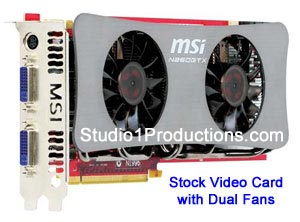
There really isn't much more you can do to cool the video card and you shouldn't have to.
This comes from the manufacturer with dual fans and heat pipes, so it will do a great job keeping the video card cool.
Keeping it Clean
No matter which cooling option you go for, about every 6 months you should buy a can of compressed air and blow any dust
that has accumulated on the fan blades and heat sinks. By removing the dust, it will really improve the cooling
and performance of the fans.
In Conclusion
By keeping the video card cool, this will improve the performance of the video card and your editing experience.
Any program that uses the GPU can cause the video card to overheat and for you to have performance problems. While
the manufacturers put fans on the video cards, they sometimes are not enough, especially with Adobe Premiere CS5 and the
Mercury Playback Engine. The GPU is heavily used, so if the video card is not kept cool, you will see the video
stutter when you play the video on the time line, you can have rendering errors or the video will render slow or you may
experience other problems.
Monitor the video temperatures and keep your video card cool.